You cut muddiness with EQ, only to make the vocal thin as well. You find the range that stings the ear, but if you cut it all the time, the sound loses its energy. You want to try Mid/Side processing, yet cannot decide what should be done to the centre and what should be done to the sides.
Working with EQ requires more than frequency, gain, Q, and filter type: it also requires a decision about why this needs correction.
Simply adding nodes does not organize the problems in a mix.
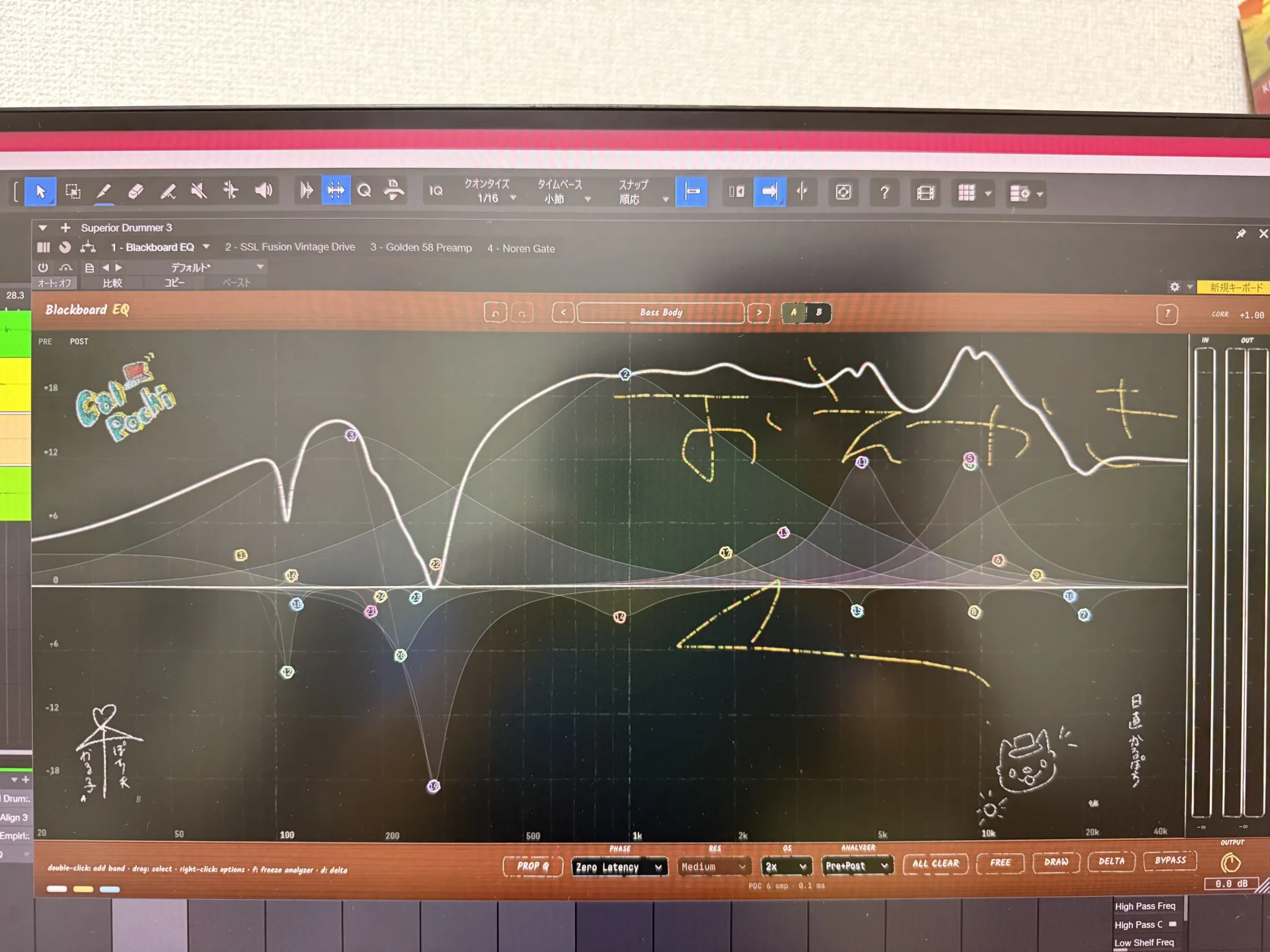
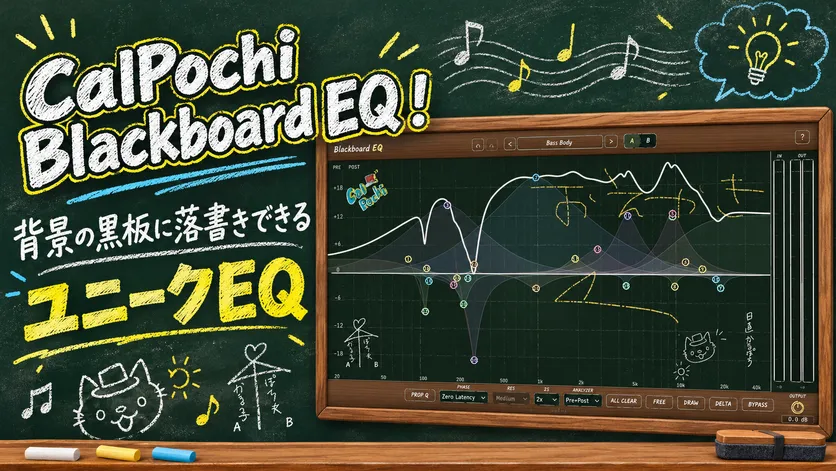
CalPochi Blackboard EQ is an equalizer that lets you:
- work as though drawing an EQ curve,
- use up to 24 bands,
- use Dynamic EQ,
- apply saturation by frequency range, and
- handle Stereo, Left, Right, Mid, and Side processing, as well as phase modes, from one screen.
Because you can identify frequency ranges by ear and leave notes about the intent of each correction, it becomes easier to trace the reasoning behind processing even in a mix with several problems.
First takeaway: Blackboard EQ lets you record not only “what to move,” but also “why to move it”
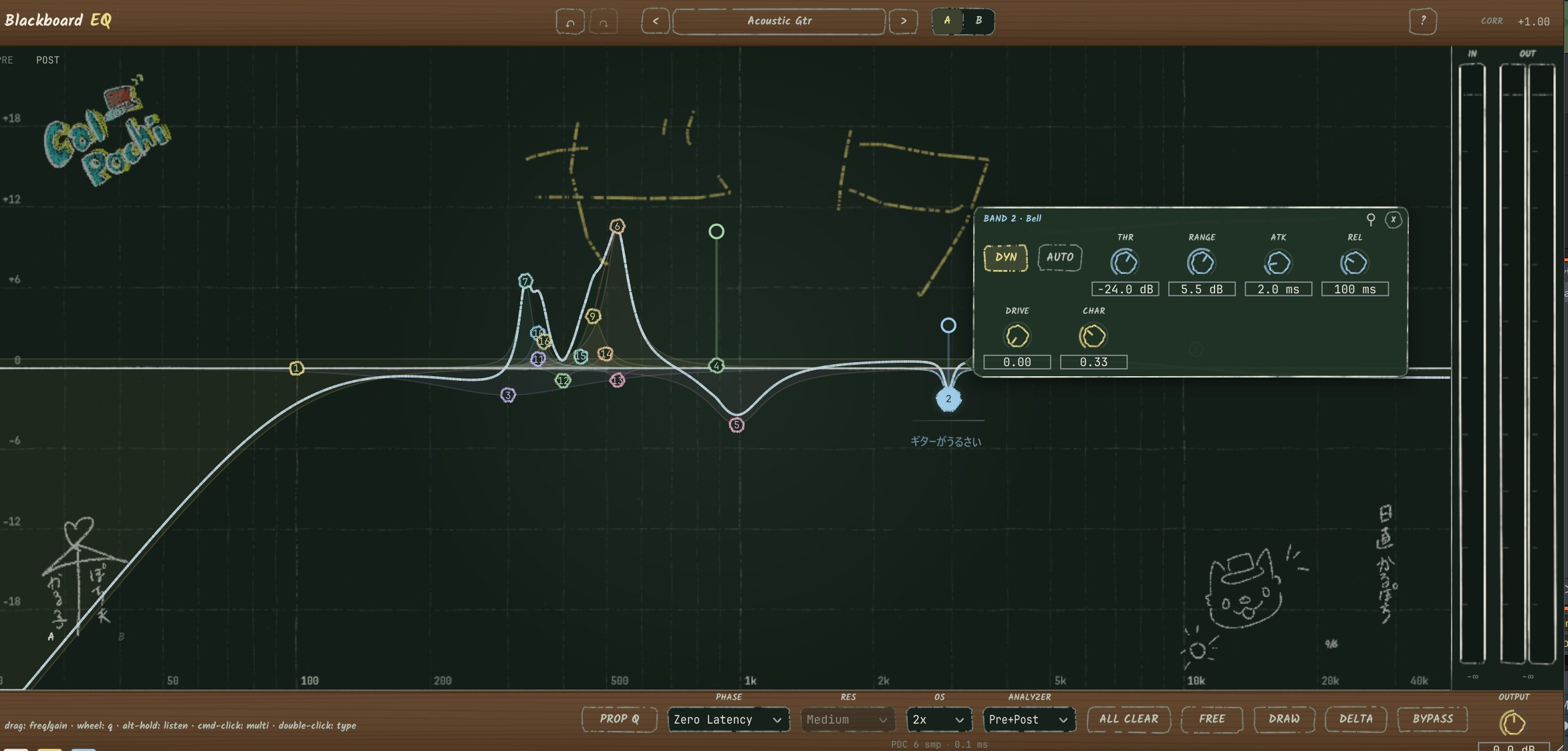
Blackboard EQ brings basic correction, Dynamic EQ that reins in sound only at the moments it becomes a problem, Mid/Side processing for working on just the left/right sides or the centre, and per-band saturation together on one screen.
| Production problem | Blackboard EQ feature to use | Change you can aim for |
|---|---|---|
| Cutting vocal harshness also takes away its vitality | Per-band Dynamic EQ | Try reducing the target range only when the problem appears |
| Low-mid muddiness gathers in the centre | Mid processing; band solo | While listening to Mid alone, more easily check the relationship between the main melody and the low mids |
| The left-right spread feels rough | Side processing; saturation | Organize the horizontal frequency range individually and decide where texture is needed |
| You later forget the reason for a cut or boost | EQ-point notes | More easily follow the purpose of the correction when reopening the session |
| Recording and mixing need different treatment | Zero Latency; Linear Phase | Choose a phase mode that suits the stage of work |
EQ is not processing whose result is determined by the number of nodes. Find the component that is causing trouble in the song, then handle it only for the necessary section, channel, and amount; doing so makes the reason for the correction less likely to get lost.
CalPochi Launch Sale – 30% OFF
Source-dated offer: From 7 September through 11 October 2026, Blackboard EQ was 30% off.
¥ 14,980 → ¥10,486 (price subject to exchange-rate changes)
What is Calpochi Blackboard EQ?
CalPochi Blackboard EQ
Overall rating: 4.5 / 5
Pros
- A feature-rich EQ supporting up to 24 bands
- A genuinely useful note function
- The ability to doodle on the background blackboard
Cons
- On a 4K monitor, the knobs can look small
Insider: Do not underestimate it just because its appearance is playful.

Azaraashi: It is quite feature-rich for an EQ.
CalPochi Blackboard EQ is an equalizer to which you can add up to 24 bands.
For each band, you can set frequency, gain, Q, filter type, slope, and processing channel.
- Low Cut
- Low Shelf
- Bell
- Notch
- Band Pass
- High Shelf
- High Cut
- Tilt
It has these eight filter types, and the cut filters offer slopes from 12 to 96 dB/oct.
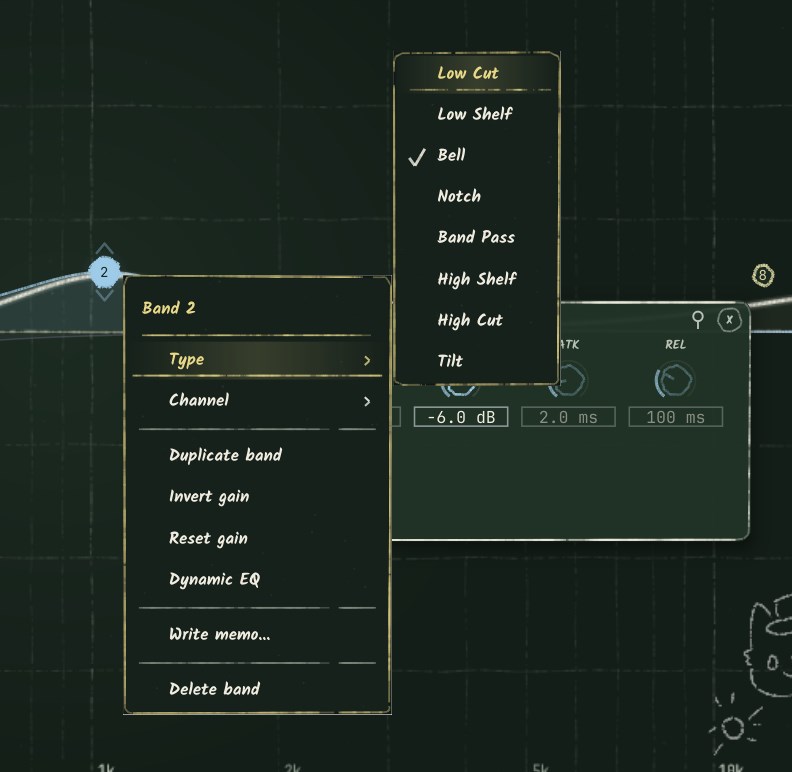
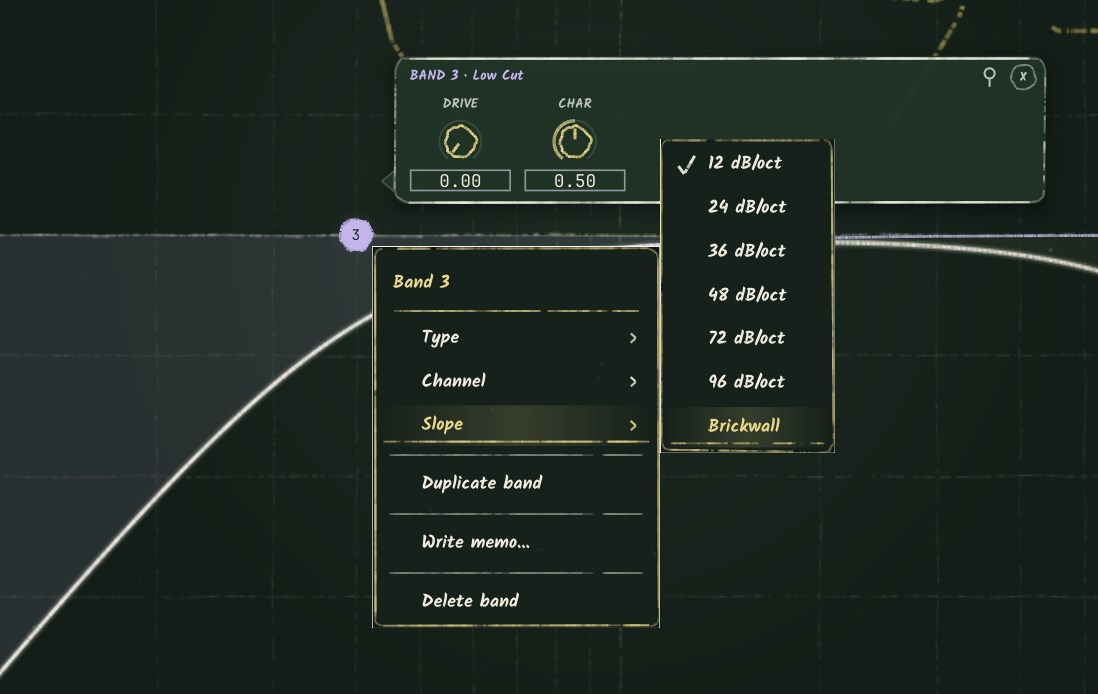
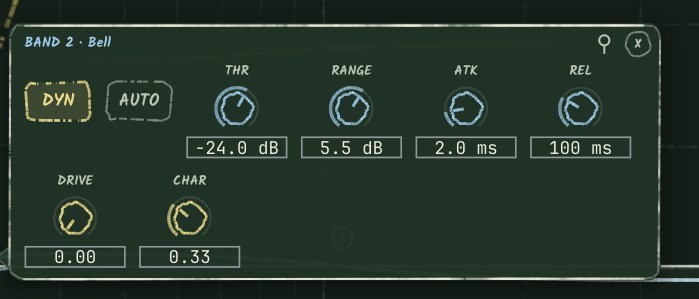
You can choose Stereo, Left, Right, Mid, or Side as the processing channel. A band with Dyn enabled works as a Dynamic EQ using Threshold, Range, Attack, and Release. Sat uses Drive and Character, letting you add texture only to the range that needs it.
The interface includes pre/post analyzers, A/B comparison, Output Gain, and Proportional Q. Holding Alt while operating a node lets you solo the target band’s frequency range. You can leave a text note on an EQ point. FREE Draw is an audio-neutral chalk doodle that is saved with the session.
Depending on the person, the knobs and text can feel a little small on a 4K monitor. Personally, I would welcome slightly larger text.
FREE enables doodle mode.
One noteworthy point is its sketch function, which lets you draw an EQ curve much like the feature in FabFilter Pro-Q 4.
Personally, the note feature is also a quietly useful one. Press Write memo. You can also leave a text note by right-clicking an EQ point, so you can write why I cut here
into the session.
When you are doing other work, it is easy to forget the reason behind an EQ move, so this note feature is very helpful.
Then there is the feature behind the plugin’s name: the ability to doodle on the background blackboard.
Press FREE to doodle. It has no effect on the audio whatsoever.
When several EQ windows are open, it is not always immediately obvious which one is guitar and which one is drums.
If you write guitar
or vocal
large on the blackboard, visibility improves.
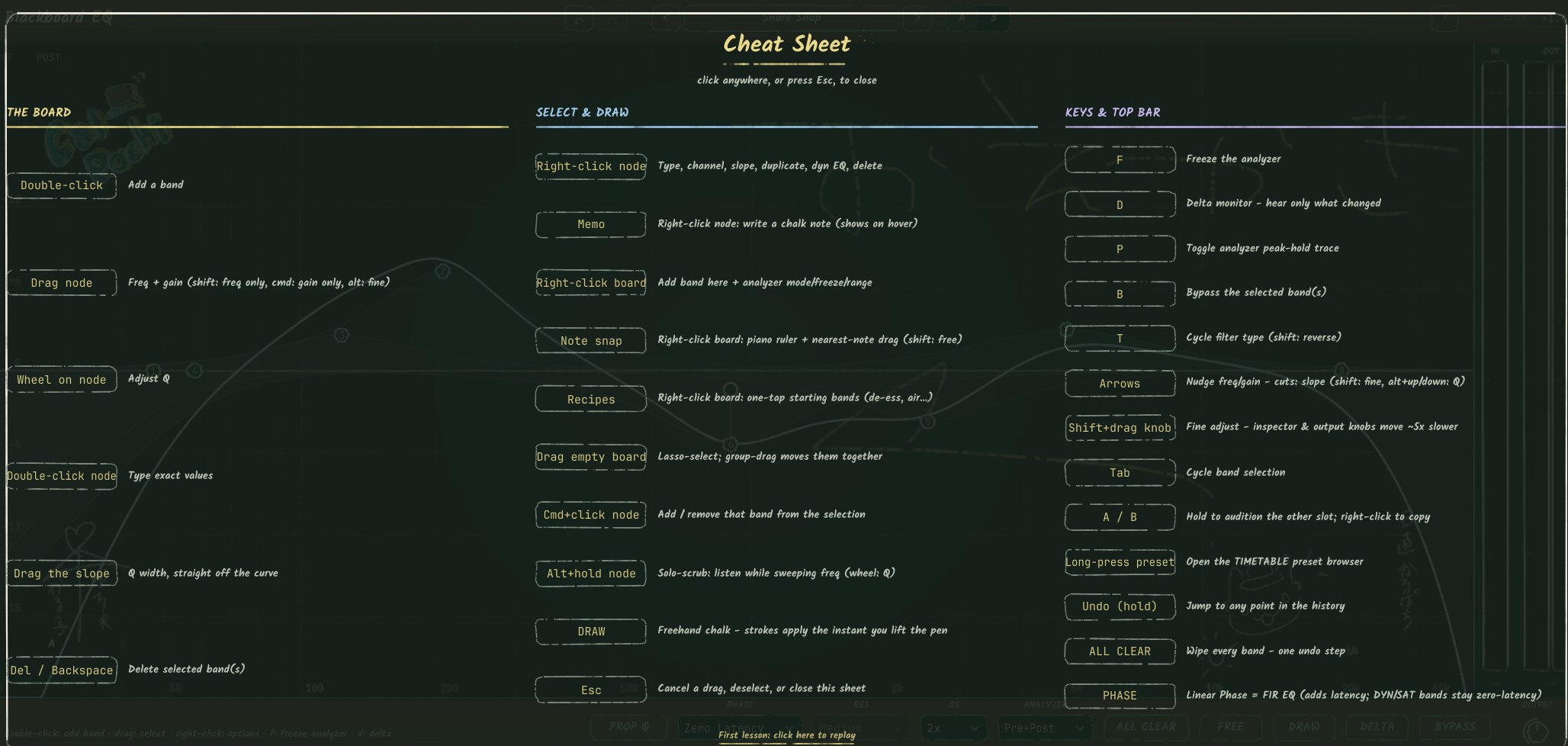
Also, when you hold Alt while operating a node, you can find a frequency while listening only to that band’s range. These kinds of hotkeys are provided, so it is also well suited to fast work.
Press the ?
at the top right to see a hotkey cheat sheet.
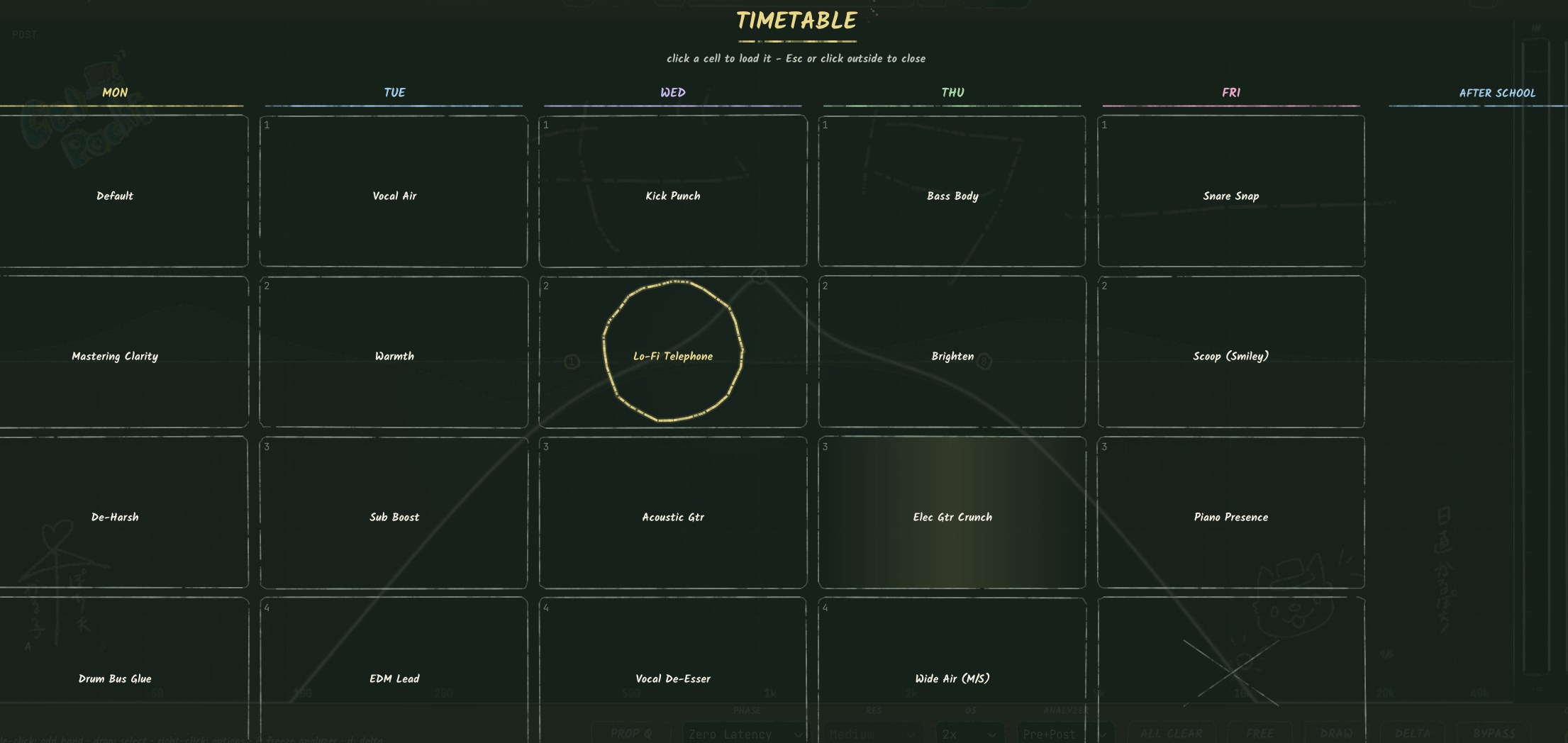
Presets
Presets are provided for the main instruments.
Press Timetable to view them in a list that resembles a school timetable.
Up to 24 bands is not a feature for making 24 corrections
When you see an EQ with many bands, it is easy to feel that you must make detailed fixes. Blackboard EQ’s 24 bands are headroom: on material with several purposes, such as a vocal, drum bus, or master, they let you expand your options only when necessary.
In real work, begin with three questions.
- What is difficult to hear? Define the musical problem in words: the vocal lyric, the kick’s definition, the spread of the chords, and so on.
- Does the problem happen all the time? If it is always muddy, consider static EQ; if only a particular syllable or hit is painful, consider Dynamic EQ.
- Is the problem in the centre or the sides? Check Mid, where lead melodies and low frequencies collect, separately from Side, where space and width tend to appear.
With these three questions, the reason to add a band becomes clear. Even if the EQ curve becomes complex, you can keep every node’s job explainable.
Dynamic EQ moves a band “only at the moments it is needed”
Static EQ always acts on the range you set. If vocal harshness or snare resonance occurs only at some moments, a deep static cut changes the tone even during sections with no problem.
In Blackboard EQ, you can enable Dyn on each band and set Threshold, Range, Attack, and Release. It can be used as a Dynamic EQ that moves by the set Range only when a particular range exceeds the Threshold.
| Material | Problem for which to consider Dynamic EQ | Starting decision |
|---|---|---|
| Vocal | Only certain vowels, sibilants, or strong vocalizations are painful | Set the Range to move only at the problem moment |
| Snare | Shell tone or metallic resonance becomes conspicuous afterward | Try retaining the attack and reducing only the tail |
| Guitar | The midrange crowds the ear only when chords overlap | Reduce it only during dense passages |
| Mix bus | The low mids swell only in a particular section | Shape the heightened section rather than cutting the entire song |
Setting Dynamic EQ deeply does not automatically make the sound better. If the Range is too large, the tone may waver or the vocal words may become thin. Use bypass comparison and band solo, and focus your aim on the moment where the problem occurs.
Why use Stereo, Left/Right, and Mid/Side
Stereo is the basic mode that processes left and right together. Left/Right is useful when addressing noise or recording differences on only one side. Mid is closely associated with centre-focused vocals, kick, bass, and snare; Side is more likely to relate to guitars, pads, reverb, and cymbals that spread left and right.
The purpose of Mid/Side processing is not to make things wider. It is to check the roles of the centre and sides separately. For example, if the central low mids are heavy, tidy Mid alone slightly. If the high end at the sides is rough, check Side alone. Listening to the problem location separately can avoid applying a broad EQ change to the entire Stereo signal.
| Processing channel | Purpose | Failure to check for |
|---|---|---|
| Stereo | Shape a tone shared by left and right | Whether you are also moving a problem that exists on only one side |
| Left/Right | Address a one-sided recording difference or problem in a panned sound | Whether the left-right balance has been upset |
| Mid | Tidy the centre where vocal, kick, and bass gather | Whether the main melody’s presence has also been lost |
| Side | Shape the horizontal space of guitars, pads, and ambience | Whether the impression falls apart in mono playback |
Per-band saturation handles texture that EQ alone cannot
EQ mainly changes frequency balance. When sound is thin, cold, or does not come forward, harmonic texture can be involved as well as cuts and boosts.
In Blackboard EQ, each band’s Sat lets you use Drive and Character. You can build tone-shaping such as adding a little body only to the low end or adding a sense of forwardness only to the upper mids.
Per-band saturation does not solve every problem. For example, use Dynamic EQ to tame vocal harshness, and light upper-mid saturation to make a bass’s pitch easier to perceive. Keeping those roles separate makes the decision-making clearer.
Choose Zero Latency or Linear Phase according to the stage of work
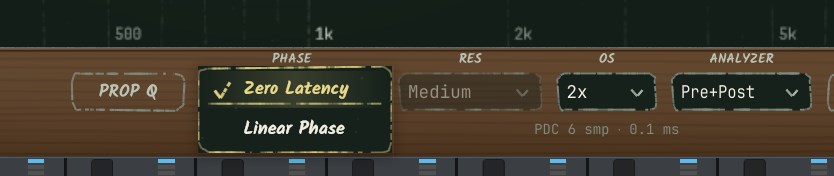
Blackboard EQ has Zero Latency and Linear Phase modes. Zero Latency suits situations where you want to work with minimal delay. Linear Phase can be chosen in mix or master work when you want to assess phase alignment more closely.
Linear Phase introduces latency. A practical approach is to choose Zero Latency for recording monitoring, then compare Linear Phase for final mix decisions or master processing. Choosing Linear Phase does not automatically make a musical decision correct. Listen to phase, CPU load, and tonal change, and choose the mode that suits the song.
2x and 4x oversampling are also available. Because they raise CPU load, using them on the tracks that need them or at the final-check stage helps preserve the flow of production.
EQ-point notes help when you revisit a mix
When you reopen a mix the next day, you may no longer know why did I lower 400 Hz?
or why did I tidy the Side high end?
A node with no known reason is difficult to judge: should it be removed or kept?
In Blackboard EQ, you can leave a text note by right-clicking an EQ point. A short phrase is enough: nasal vocal,
low mids swell only in the chorus,
or left-guitar resonance.
Leave both the problem and the purpose.
FREE Draw has no effect on the audio. You can leave the song structure, ranges to watch, and correction priorities as if writing with chalk. Used to support your memory of the work, it makes decisions easier to carry forward even in complex sessions.
Four steps to start using Blackboard EQ
- Find the problematic section with the pre-analyzer and your ears. Check not only level, but also lyric intelligibility, low-end swelling, and painful frequencies.
- Solo the target range with the Alt operation and choose the frequency. Do not decide while it is excessively boosted; find the point where the problematic component stands out most.
- Choose static EQ, Dynamic EQ, saturation, or M/S processing according to the role. Use whether the problem is constant or momentary, and whether it is in the centre or sides, as your guide.
- Write the purpose on the EQ point and confirm with A/B comparison. Bring the levels before and after the change close together, then judge whether it has become easier to hear in the song.
The more you want to add nodes at the final stage of a mix, the more useful notes and A/B comparison become. If you cannot explain what the added process improved, it may be necessary to return to bypass once.
Where to add a hands-on review
EQ results change with the source material and arrangement. Adding a trial-use review from the following angles makes it easier for readers to connect the features with actual production results.
- The material used and the problem heard before processing
- The frequency found with band solo and the filter type chosen
- The difference heard when comparing static EQ and Dynamic EQ
- Why Mid/Side or Left/Right processing was chosen
- Impressions of using EQ-point notes or FREE Draw in production
Who is likely to benefit—and who may want to prioritize another tool
Who Blackboard EQ is likely to help
- People who want to find and correct troublesome ranges in vocals, drums, and guitars by ear
- People who want to use Dynamic EQ to contain harshness or resonance only at the moments it appears
- People who want to mix by separating the roles of the centre and sides with Mid/Side
- People who want to shape sound by adding different textures to the lows, mids, and highs
- People who want to leave the intent of EQ processing in a session and carry their decisions forward to later days
Who may want to prioritize another process
- People who only want to even out level differences
- People who want to repair continuous noise or clicks
- People new to learning EQ who first want to focus on operating a small number of bands
- People who want to minimize latency while recording and monitoring
Blackboard EQ is not an EQ that automatically leads processing to a correct answer. It is for people who want to think separately about frequency, time, channel, and texture. The more accustomed you are to putting the problem into words and choosing only the processing needed, the easier it is to make good use of it.
Frequently asked questions
Can beginners use Blackboard EQ?
You can begin using it as a basic EQ. At first, it is recommended to use only a few bands, such as Bell, Low Cut, and High Shelf, and train your ears with the Alt-operation band solo and A/B comparison. Dynamic EQ and Mid/Side are easier to understand when you add them after recognizing the type of problem.
How does Dynamic EQ differ from a regular EQ?
A regular EQ always acts on the range you set. Dynamic EQ moves within the Range only when the set range exceeds the Threshold. It helps when addressing a problem that is conspicuous only on a specific syllable or hit.
Is Mid/Side processing only for widening stereo?
The main purpose of Mid/Side processing is to check the centre and sides separately. Separating where problems gather—for example, the low mids in Mid or the high end in Side—can avoid making a large correction to the entire Stereo signal.
Should you always use Linear Phase?
It is not always necessary. Linear Phase introduces latency. It is easy to understand the division of use: Zero Latency for recording monitoring, and Linear Phase when you want to check phase alignment in a mix or master.
Summary
CalPochi Blackboard EQ is an equalizer with up to 24 bands, eight filter types, per-band Dynamic EQ and saturation, Stereo/Left/Right/Mid/Side processing, and Zero Latency/Linear Phase. With band solo, analyzers, A/B comparison, EQ-point notes, and FREE Draw, it lets you work without losing sight of the reason for each correction.
What matters in EQ is not making the curve complicated. It is deciding what is troublesome, when it happens, and whether it happens in the centre or sides, then using only the processing that is necessary. Blackboard EQ can be a tool for moving a mix forward while preserving in the session the decisions you have confirmed by ear.
CalPochi Launch Sale – 30% OFF
Source-dated offer: From 7 September through 11 October 2026, Blackboard EQ was 30% off.
¥ 14,980 → ¥10,486 (price subject to exchange-rate changes)